Configuring - Count Function
Please note that this configuration can be done only at an individual Element level.
In the System Explorer window, select Model Analysis from the navigation pane.
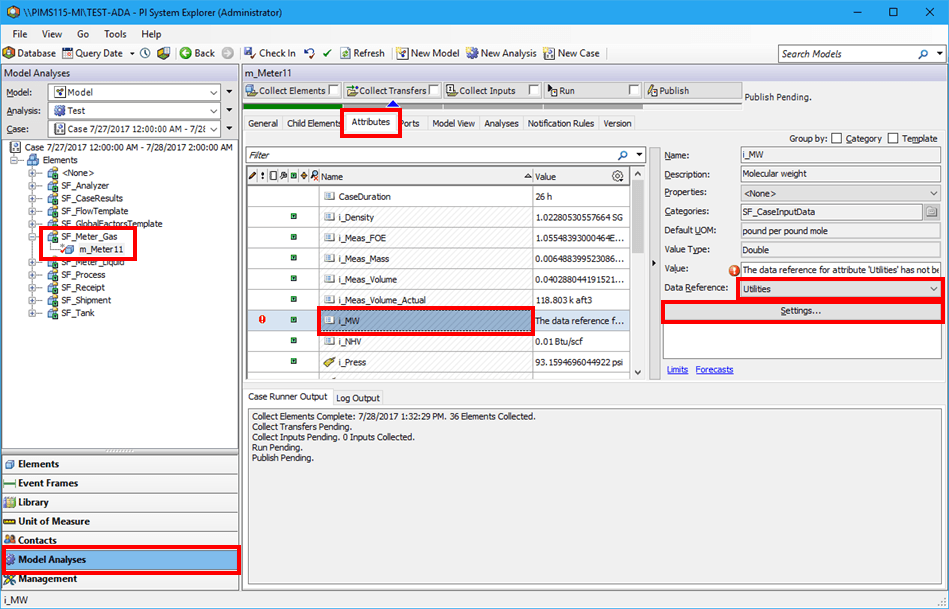
In the Elements tree, locate and select the Element you want (e.g., m_Meter11).
Click on the Attributes tab.
In the Name column, select the Attribute to be rounded (e.g., i_MW).
Click on the Data Reference down-arrow and select Utilities as the setting of the attribute (e.g., i_MW) as shown in Figure 509.
Click on the Settings button.
The Sigmafine Utilities Configuration form window opens.

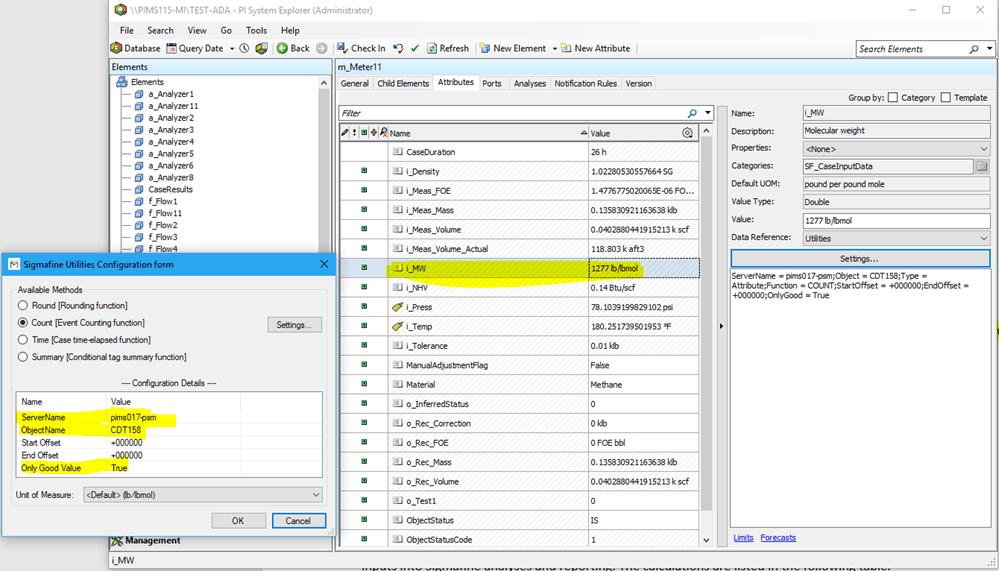
Under Available Methods, select Count (Event Counting function).
Click the Settings button to access the detailed COUNT function setup.
![Figure 511: Sigmafine Utilities - Settings [COUNT]](/DocumentDepot/DocSFHub/docs_2026/assets/images/util-count-func-config_sig-utilities-settings-count-WND-776f5869b4e221fe809ee5b21ecf217d.png)
Enter the Attributes for the COUNT functions according to the following table:
Sigmafine Utility – COUNT function parameters
Calculation Type Description PI Server Name of the PI Server for tag selection. PI Tag Name of the PI Tag targeting the count of the events. Offset Start Identify the offset from the start time of the Case where starting the COUNT. The offset can be positive or negative and it is expressed as +/-HH:mm:ss (hours, minutes and seconds). Offset End Identify the offset from the end time of the Case where ending the COUNT. The offset can be positive or negative and it is expressed as +/-HH:mm:ss (hours, minutes and seconds). Only Valid Data With this setting, user can specify to count only data not containing BAD data. When finished, click OK to save the settings and close the Settings window.
You are returned to the Sigmafine Utilities Configuration form.
Click OK to save the configuration and close the Sigmafine Utilities Configuration form window.
Following is a sample for counting the GOOD values of the tag CDT158: